Read your script. Keep eye contact.
A see-through teleprompter that sits right under your webcam, follows your voice word by word, and stays off the screen share. Now with a meeting copilot that hears the call and tells you what to say.
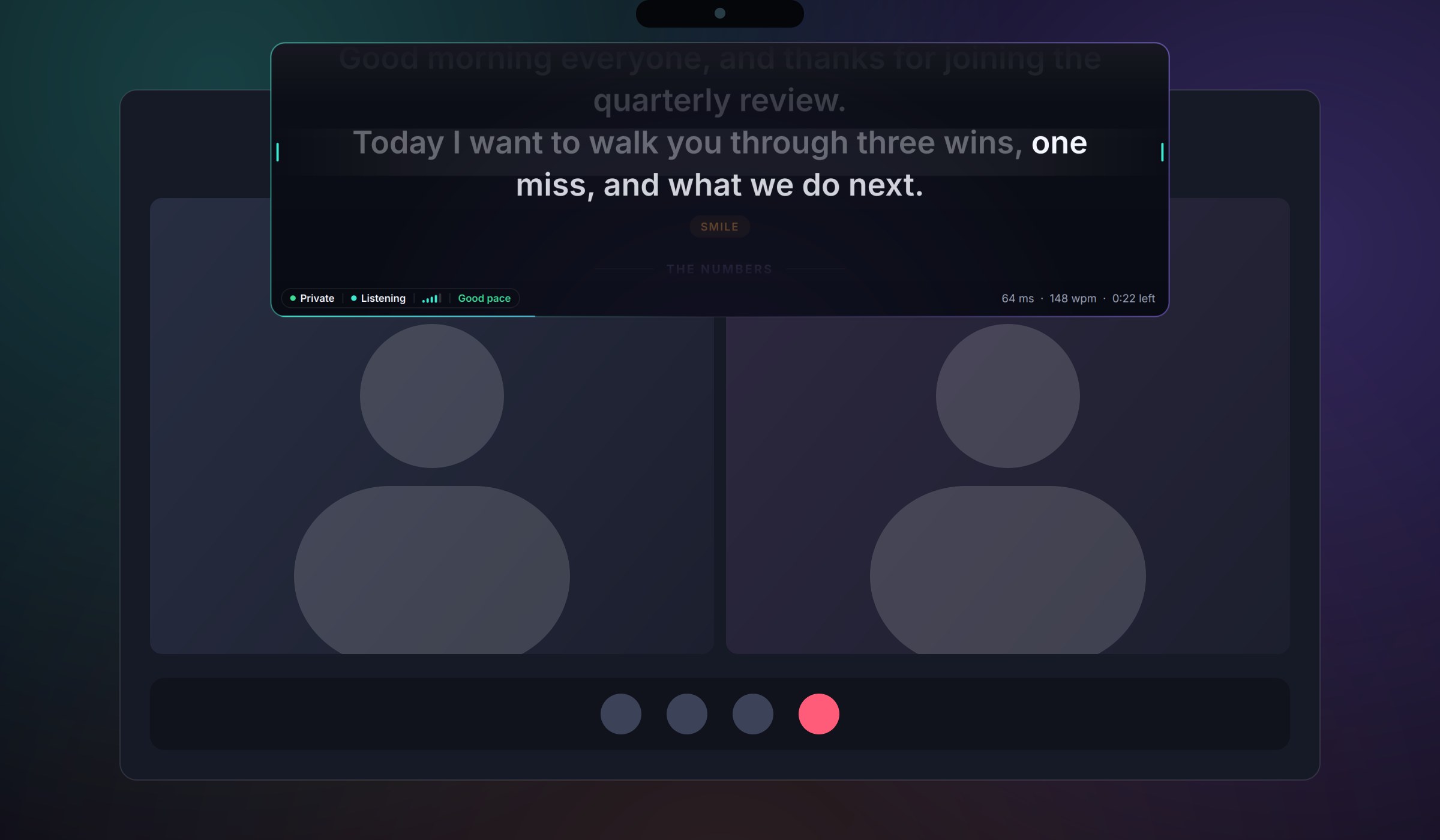
A see-through teleprompter that sits right under your webcam, follows your voice word by word, and stays off the screen share. Now with a meeting copilot that hears the call and tells you what to say.
Everything other prompters get wrong, fixed in one small app that stays out of your way.
Scrolls with your words, not a timer. Pause, ad-lib, go back. It keeps your place with about 20 ms of processing, entirely offline.
Hear your script in a natural neural voice at your pace, with the prompter following each word. Great for learning the rhythm.
Clicks pass straight through to the app behind. Pick how see-through it is, from 15% to solid, with Ctrl Alt [ ].
The prompter and every window it opens stay out of Zoom, Teams, Meet, OBS and screenshots on Windows. On macOS 15+ it tells you the truth: share a window, not your whole screen.
Scan a QR code and your phone becomes the remote: play, speed, sections, ghost level, new scripts, and a live view of your screen. PIN protected.
After each practice run you get your pace, filler words, long pauses, skipped lines and a score you can watch improve.
Transcribes both sides of a call offline, tells you what to say with Ctrl Alt Enter, answers questions as they're asked, and writes your notes and follow-up email.
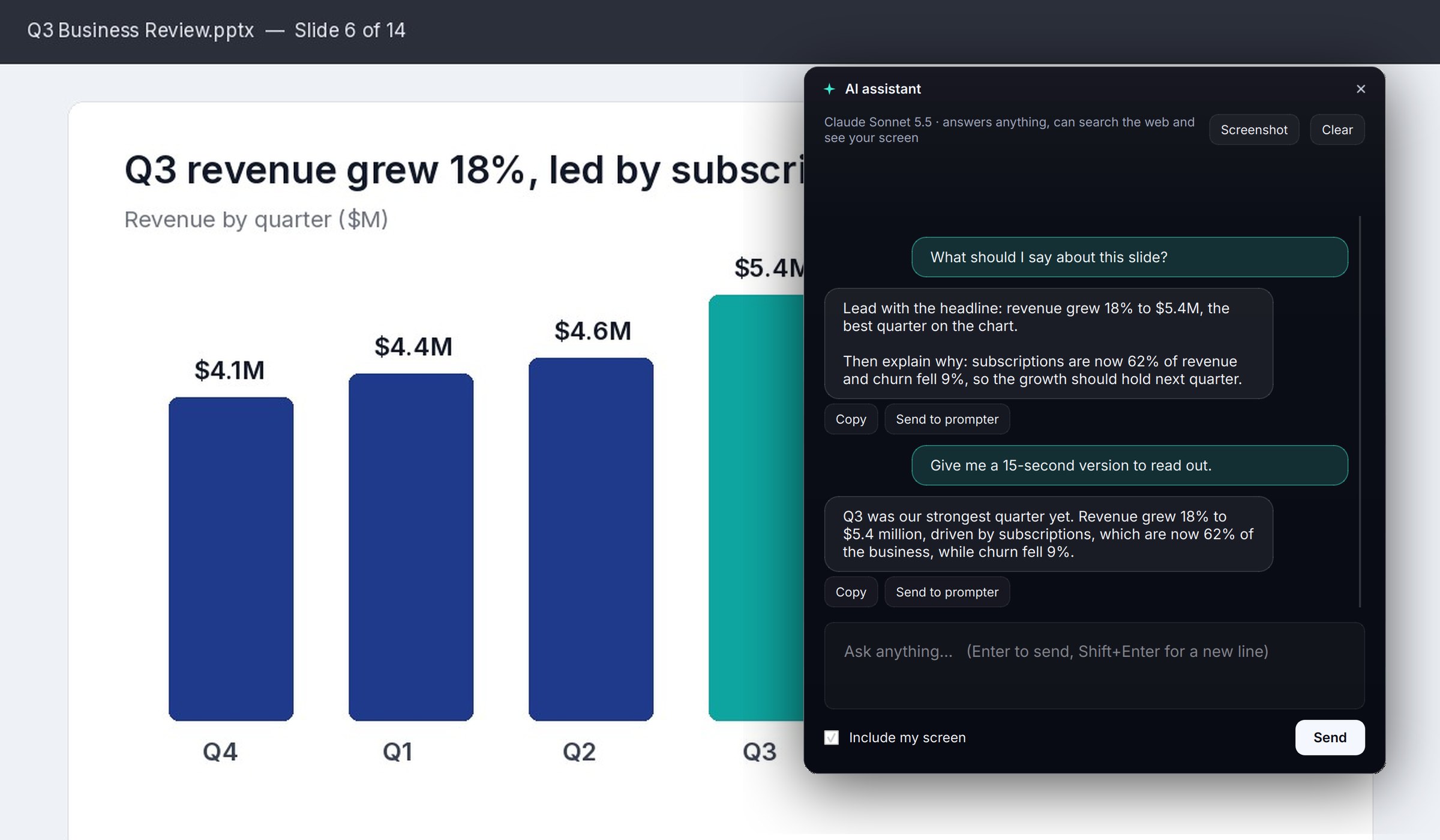
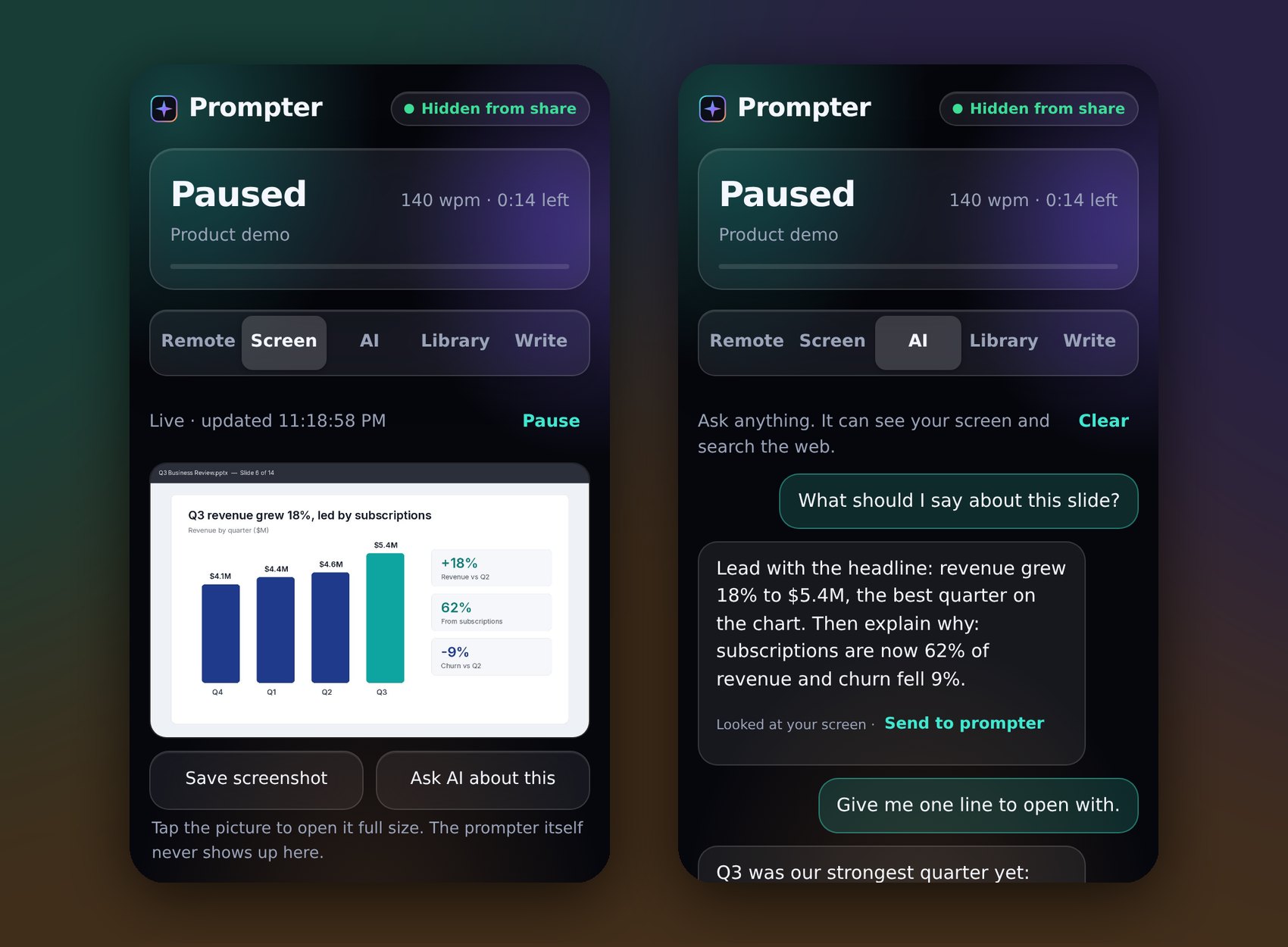
Ask anything and get a straight answer. Works with Claude, ChatGPT, Gemini, Grok and more. It can look at your screen and send its answer to the prompter. Press A, or use your phone.
See your computer's screen live on your phone, about every 1.5 seconds. Pinch to zoom, pause, or save a full-size copy.
Press S to save a full-resolution screenshot to Pictures and copy it. The prompter never appears in it.
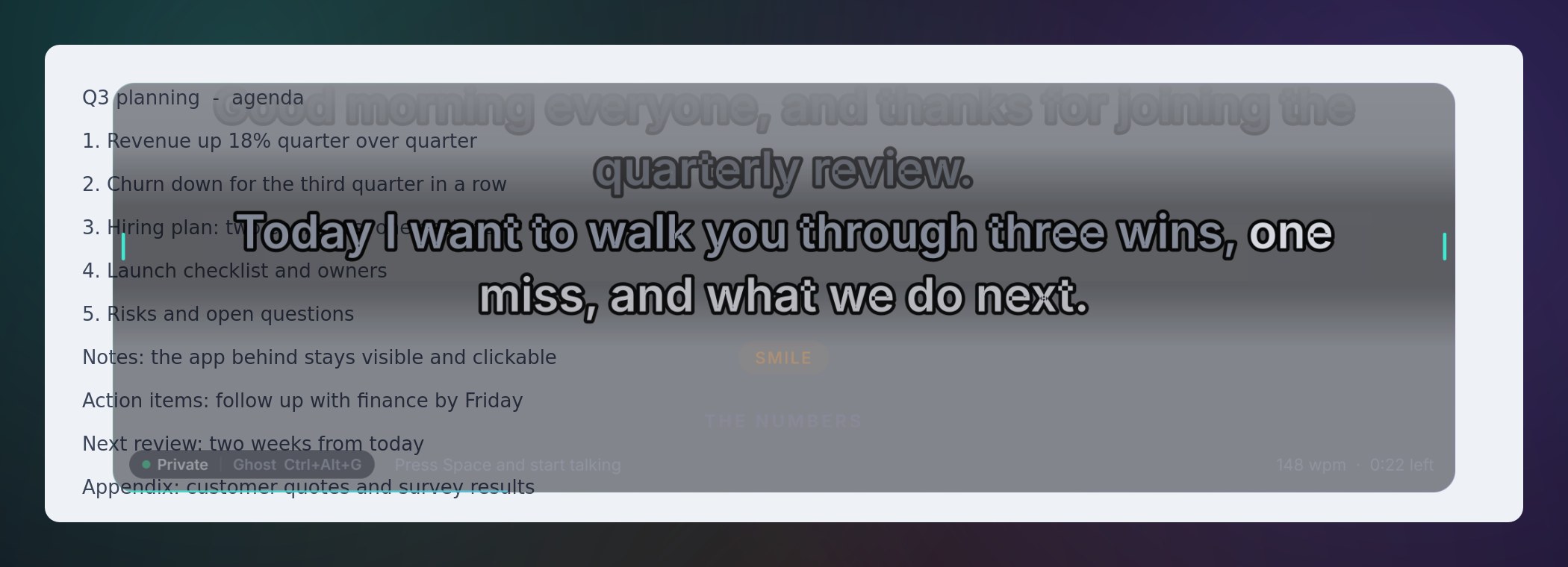
Ghost mode turns the panel see-through while the words stay sharp, so your slides, notes or code stay readable and clickable underneath.
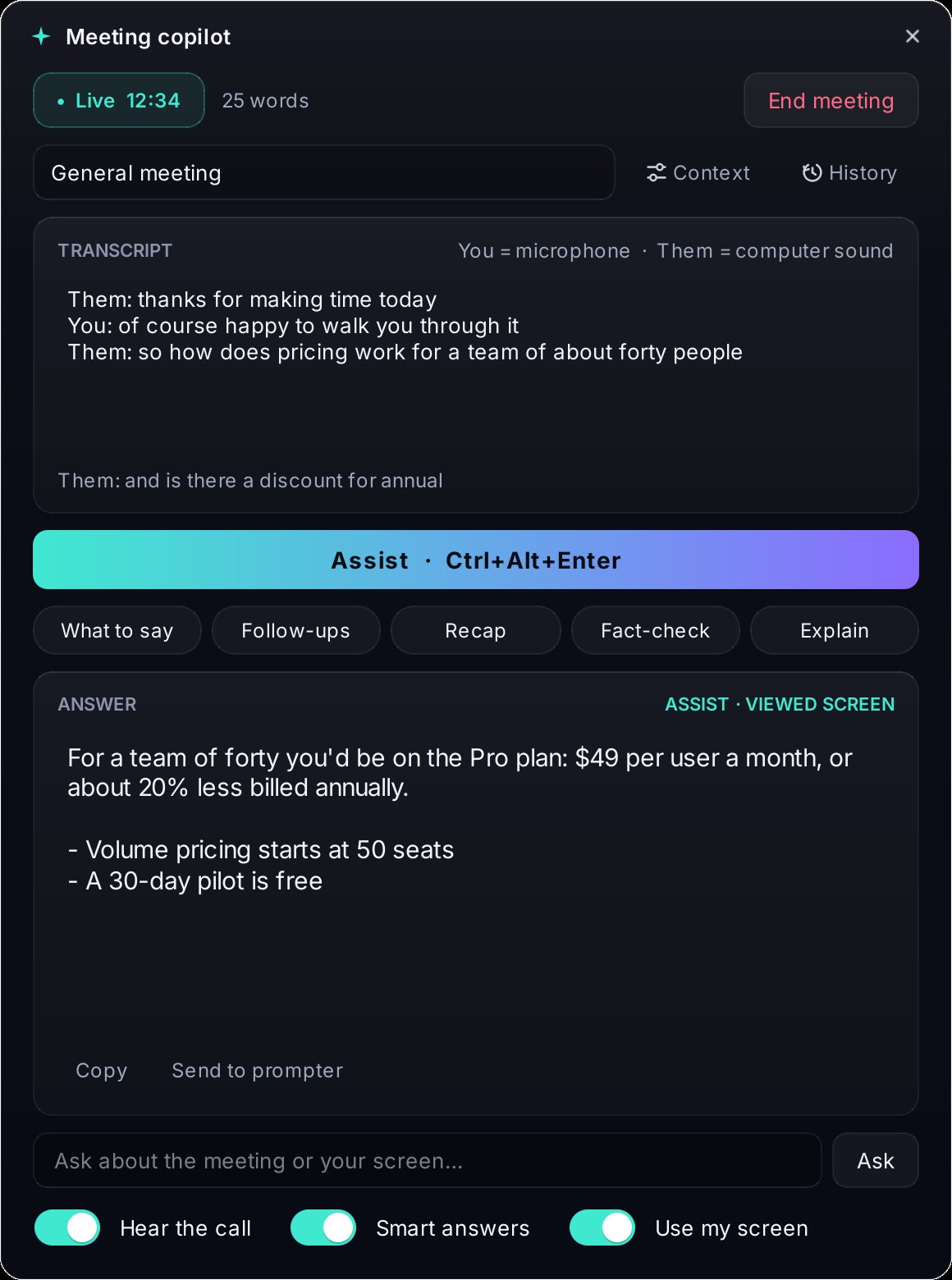
Start a meeting and Glass Prompter listens with you. When you need help, press one key. Nobody else on the call can see it.
Let people know you're taking notes: some places require everyone's consent to record or transcribe a call.
Stuck on a slide, an error or a question mid-call? Ask. The AI of your choice looks at your screen and your script, and answers in seconds.
Based on what people say about the tools they use today.
| Glass Prompter | Typical voice-scroll apps | Mac notch apps | |
|---|---|---|---|
| Windows and Mac | Both, same app | Usually one | Mac only |
| Voice scrolling | Word by word, offline, glides smoothly | Often lags or jumps on a mishear | Varies |
| Mic drops mid-take | Reconnects by itself | Often freezes | Varies |
| Screen share status | Honest badge per OS | "Invisible" claims | Often undocumented on macOS 15+ |
| Natural read-aloud | Built in, offline | Rare | Rare |
| AI assistant | Any provider (Claude, ChatGPT, Gemini, Grok…), sees your screen, on PC and phone | Script rewriting at most | Rare |
| Meeting copilot | Live transcript, Assist from any app, notes and follow-up email, hidden from share | None | None |
| Your scripts | Daily backups and export | Lost-script reports are common | Varies |
| Price | Free | Subscription | $30 to $40 |
No app to install. Scan the QR code on your computer, enter the PIN, and control everything from across the room.
Free, no account. Updates arrive inside the app.
64-bit, installs for you only, no admin needed.
Download for Windows>winget install TokunboAjayi.GlassPrompter
In review. Microsoft is approving the winget listing. Until it's live, use the installer above.
$brew install --cask tokunboajayi/tap/glass-prompter
Works on Apple silicon and Intel. Updates with brew upgrade or inside the app.
Global shortcuts work from any app, even mid-call. The same sheet is inside the app: press F1.
The installer isn't code-signed yet, so SmartScreen shows a warning for new apps. Click More info, then Run anyway. Every download has a published SHA-256 fingerprint, and the in-app updater checks it automatically.
The first time, right-click Glass Prompter in Applications and choose Open. On macOS 15 or later, open System Settings, go to Privacy & Security, and click Open Anyway. You only do this once.
On Windows 10 (2004+) and 11, the prompter and every window Glass Prompter opens (settings, the AI assistant, menus, message boxes, even the file picker) are excluded from screen sharing, recordings and screenshots. macOS 15 and later lets screen recorders capture every window, so on a Mac share a single window or app instead of the whole screen. The badge on the prompter always shows the real state.
No recording is kept. The copilot turns speech into text on your computer as it happens, and saves only that text, the notes and the follow-up email in your local meeting history (which you can search, export or delete). The AI sees the transcript only when you press an action, or when Smart answers spots a question someone asked you. Check your workplace's rules and tell people you're taking notes; some places require everyone's consent.
No. Voice recognition and the read-aloud voice run on your computer. Scripts live in a local library. The only internet requests are a once-a-day check for a new version on GitHub (you can turn it off) and, only if you set up the AI assistant, the messages you choose to send to the AI provider you picked.
Glass Prompter itself stays free. The AI runs on your own account with an AI company, which bills you per question (usually a few cents or less). An API key is just a password that lets Glass Prompter use that account. Setup takes about two minutes:
sk- or AIza.Prefer free and fully offline? Install Ollama, choose Ollama as the provider, and no key is needed. Your key stays on your computer and is never sent to the phone. Never share it or paste it into a bug report.
Only what you send. When Include my screen is ticked, it gets one screenshot with your question; untick it to send text only. Glass Prompter's own windows are never in that screenshot. It also sees the script on your prompter so it can help with it. Close anything private, like passwords, before asking about your screen.
Glass Prompter is in public beta, so feedback shapes what comes next. In the app, open the menu and choose Report a problem or Suggest a feature; it opens a GitHub form with your app version and system already filled in (nothing personal). You can also open one here. Found a security problem? Please report it privately.
Yes. No account, no trial, no watermark. It's also open source under the MIT License, so you can read every line of code.